What is an M3U playlist?
A plain text file that lists channels and their addresses. Your provider gives it to you as a link, which often ends with .m3u or contains type=m3u. A player like Ondo reads it and turns it into channels, movies and series sorted by category.
Ondo provides no playlist: it plays the one you already have, from your own provider.
Add your playlist in Ondo
Install Ondo TV
On Fire TV, follow the Fire TV guide. On Android TV or Google TV, the Android TV guide. Three minutes.
Create your account
On first launch, enter your first name, your email and a password. The account is free.
Choose “M3U link”
The Add your playlist screen opens. At the top, choose M3U link.
Paste or type the address
In M3U address, enter the link from your provider. Give it a name if you like (“Living room”). The TV guide field is optional: leave it empty, Ondo looks for the guide by itself.
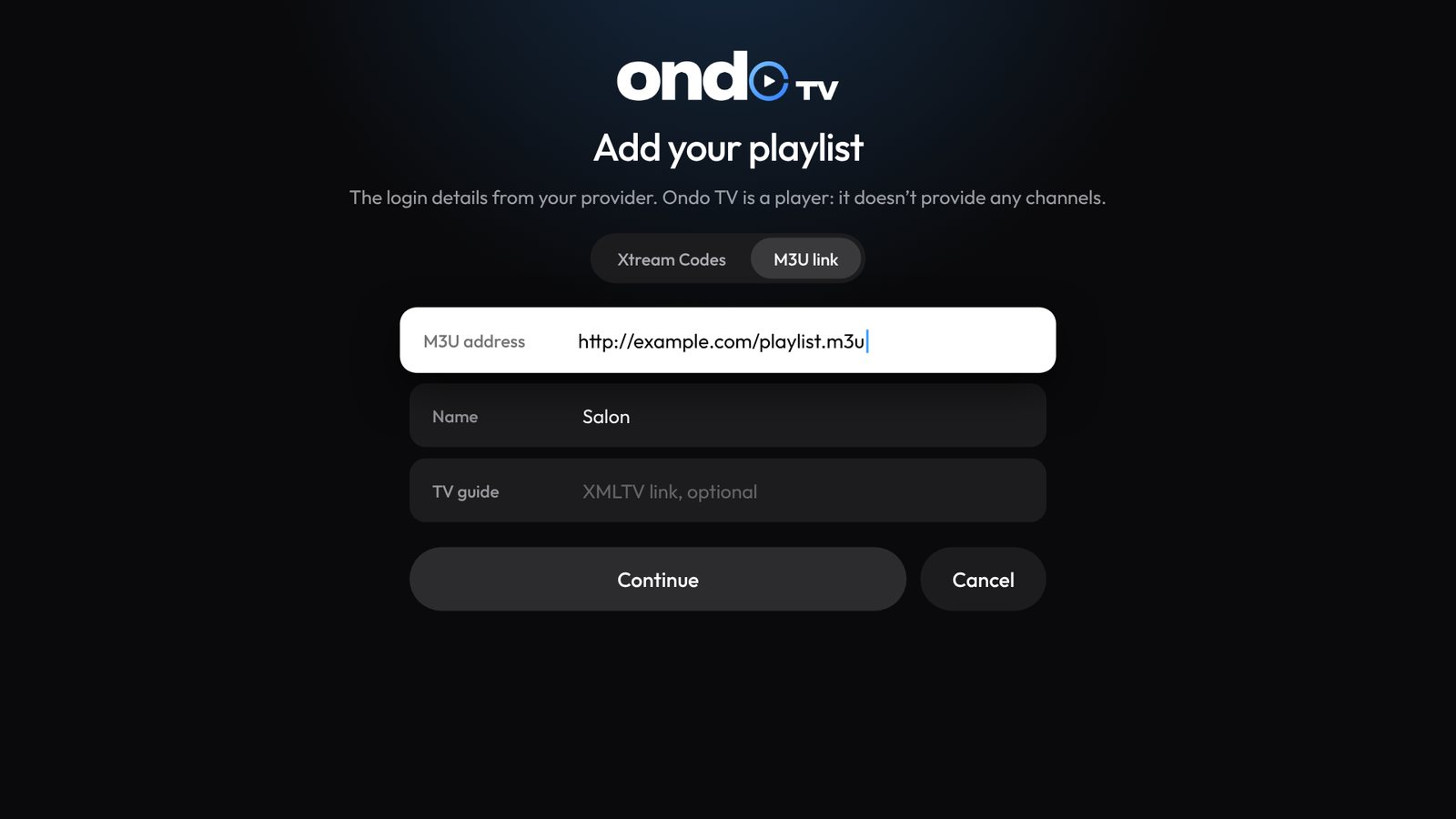
The “Add your playlist” screen in Ondo TV, M3U link tab. Continue
Choose Continue. Ondo loads your playlist and sorts everything: live channels, movies and series, with their posters and summaries.
Your link contains “username” and “password”?
Then your provider uses Xtream Codes. Add it with those logins instead: movies and series are better organized, and Ondo shows when your subscription ends. See the Xtream Codes guide.
If it doesn’t work
- “Nothing at this address”: a letter is missing or extra. Check the link, especially http or https, and that there is no space.
- “Your provider is refusing the connection”: your subscription with them may have expired, or the link changed. Ask them for an up-to-date link.
- “Your provider limits connections”: too many screens use this account at the same time. Stop playback elsewhere and try again.
- A channel won’t start: check that it works with your provider, then refresh your playlist in Settings › Content and playlists.
Stuck somewhere?Ask on the Ondo Discord: the team and the community answer.
Join the Discord